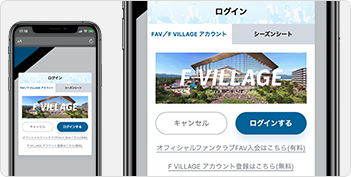

Please log in as a FAV member or with your F VILLAGE account.
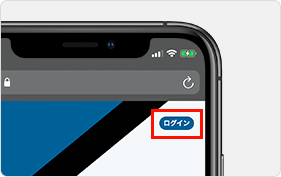
Please select the login icon in the upper right corner.


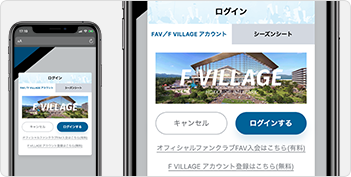
Please select "Log in".
1
Coupon code
Display input field
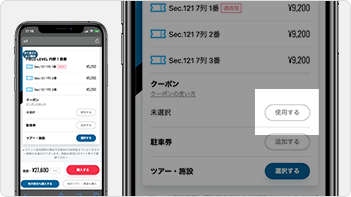
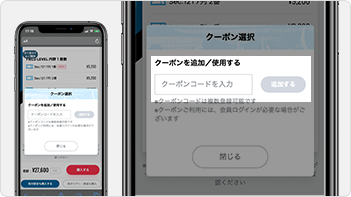
If you have a coupon code, please select the "Use" button in the coupon section of the checkout screen.
2
coupon code
Enter
Please enter the coupon code and select the "Add" button.
*If you select the "Add" button but do not complete the purchase, it will be added to your My Coupons.
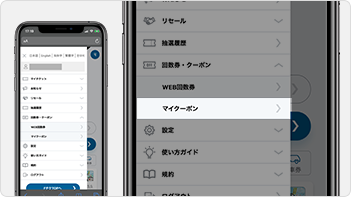
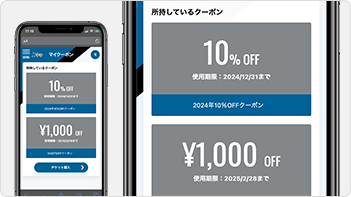
If you are unable to use an unused coupon, please check "My Coupons" after logging in.
3
Select a seat
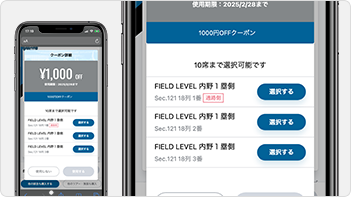
Coupon information will be displayed; please review it and select the seat to which you wish to apply the coupon.
*If using multiple tickets with a coupon, you will need to perform the same operation for each ticket you wish to use.
4
Use a coupon
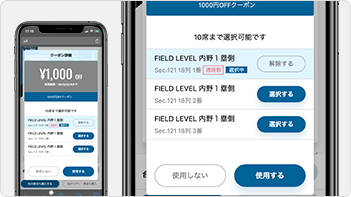
Once you have selected the seat to which you want to apply the coupon, please select the "Apply" button.
5
Check the amount
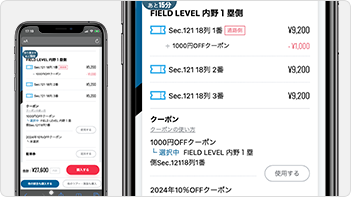
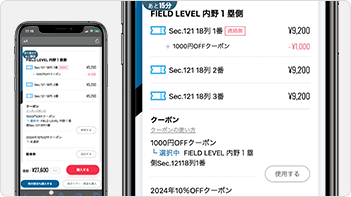
Please confirm that the coupon has been applied to your selected seat.
1
Use a coupon
Please select the "Use" button in the coupon section of the checkout screen.
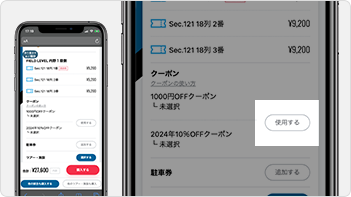
2
Registered
Choose from coupons
Please select the coupon you wish to use from the list of coupons.
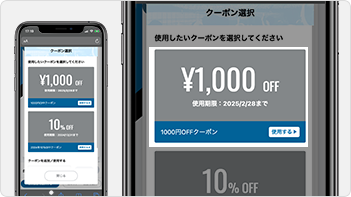
3
Select a seat
The seats to which the selected coupon can be applied will be displayed. Please select the "Select" button for the seat to which you wish to use the coupon.
*If using multiple tickets with a coupon, you will need to perform the same operation for each ticket you wish to use.
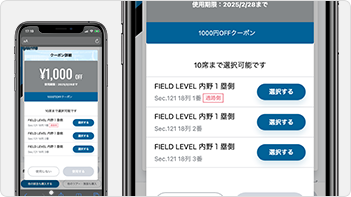
4
Use a coupon
Once you have selected the seat to which you want to apply the coupon, please select the "Apply" button.
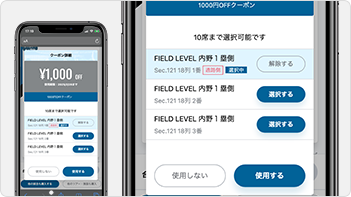
5
Check the amount
Please confirm that the coupon has been applied to your selected seat.